How to Invoice a Client Like a Pro to Get PAID (Free Template)
Learn exactly what goes into an invoice so you can prepare your own. And don't leave without grabbing your free invoice template!


Want to be paid for work that you’ve done? Then you’ll need to send your client an invoice.
This is basically a bill for services that you will be providing, or have provided, to the client.
If you’re new to creating invoices, the process may seem daunting – especially if you don’t know what should go into an invoice, or how to design one. But don’t beat yourself up over it!
When I first started out, I had no idea what to do either. I was Googling templates like crazy until I managed to cobble together something that resembled an invoice.
But fast-forward to now, where I’ve issued close to 600 invoices, and I can tell you that after you know how to invoice a client once, doing it again (and again) becomes easy-peasy.
So today, I’m going to show you exactly how to create and send invoices to clients.
Let’s get started!
Contents Menu
- When Should You Send an Invoice? Follow this Simple Rule
- How to Prepare an Invoice (Featuring: the Hard Way, the Easier Way and the Easiest Way)
- How to Send the Invoice (With Just a Few Clicks of a Button)
- Now: Get Paid!
When Should You Send an Invoice? Follow this Simple Rule
Before we get into invoice-creating proper, you should know the right time to send an invoice.
And the answer to this is: when you’re owed payment.
Completed a job and the client doesn’t need anything else from you? Time to send your invoice.
Are you supposed to get payment upfront before you start work? Time to send your invoice.
In the middle of a project and you’ve reached a payment milestone? You guessed it! Time to send your invoice.
Basically, if you and your client have agreed that you will be paid when some event occurs, and that event has occurred, then you should be sending your invoice.
‘nuff said.
How to Prepare an Invoice (Featuring: the Hard Way, the Easier Way and the Easiest Way)
Preparing an invoice involves 2 steps:
- Knowing what should go into an invoice
- Actually doing up the invoice
Let’s talk about both.
What information should you include in the invoice?
Regardless of their design, all invoices pretty much contain the same information, split into 3 different invoice sections:
- Header
- Body
- Footer
This infographic gives a bird’s-eye view of what typically goes into each section of an invoice:

What goes into the invoice header?
The header of an invoice typically contains the following information:
- The word “INVOICE” – make it HUGE and put it right at the top of your invoice so there’s no way your client will mistake your invoice for something else.
- Project name – the name of the project.
- Your business logo – if you have one.
- Your business name and registration number – you may be required by law to include these details in your invoice if you’ve set up a company.
- Your address and contact details – the person who processes the invoices may not be the same person you’ve been working with, especially at larger companies. Make it easy for them to contact you if they have questions about your invoice (so that they can pay you faster).
- Client’s name and address – check with the client if they have any special instructions for this, e.g. addressing the invoice to their accounts department.
- Invoice date – the date that the invoice was created.
- Payment due date – put down the due date for payment so there’s no ambiguity on this.
- Total payment amount – consider making the numbers HUGE so they can be seen at a glance.
Pro tip: before you start doing up your invoice, ask your client for their billing practices. This way, you’ll know how to fill it in so it can get processed properly (and settled quickly!!).
For example, ask who to address the invoice to, or how payments are made and when. Some clients may also need you to include certain reference codes or numbers in your invoice.
What goes into the invoice body?
The invoice’s body lists the services that you’ve provided and their respective fees, before totalling up the final sum.
There’s no one way of doing this. As an example, let’s say you’ve written 3 articles for a client for a single project. You could:
- Bill for the entire project in 1 line, with a description of the 3 articles as a remark; OR
- Bill for each article separately, in 3 separate lines.

Either way works.
The invoice body will also have a notes section, where you can include your invoice terms and instructions, such as:
- Your accepted modes of payment – bank transfer, cheque, credit card etc.
- Late payment term – how much interest you’ll charge for late payments.
What goes into the invoice footer?
The footer of your invoice will contain any miscellaneous notes.
For example, you may include a short thank-you note to thank the client for their business.
Invoices generally don’t need to be signed off on.
How do you actually do up the invoice?
So you know what info goes into the invoice. Now, how do you actually create one?
I have 3 methods to show you today: the hard way, the easier way and the easiest way. I’ve done and seen all these methods in action, and you get no prizes for guessing which method I prefer.
But I get ahead of myself. Here are the 3 methods:
1. The hard way: Microsoft Word / Google Docs
I highly don’t recommend creating an invoice in MS Word or Google Docs.
That’s because it takes time to arrange the text so they sit pretty in certain places of the invoice and not others.
For example, maybe you want the word “INVOICE” to appear on the top left of your invoice. And to the right of that, you want to insert your company’s name and contact details. Like so:

Do you know how hard that can be to do in MS Word?
There are many ways to do it, but this bit of trickery can require playing around with text wrapping for text boxes, inserting tables with invisible borders, spamming spaces to get your text to line up properly…
Spending an hour creating an invoice from scratch is really not a good use of your time.
For sure, once you’ve created an invoice in MS Word/Google Docs once, you can pretty much use it as a template for all future invoices. Just be careful when changing the details in your template – because if you move something just a tad too far, your perfectly-aligned text might just implode and run all over the place.
Don’t say I didn’t warn you.
P.S.: Unless you do design-related work for a living, don’t spend too much time trying to prettify your invoice with fancy fonts or themes either. At the end of the day, the purpose of sending an invoice is to bill your client for work.
As long as your invoice contains all the required information in a readable manner, it will achieve this purpose even if it is the ugliest invoice on Earth.
If I haven’t put you off creating invoices in MS Word yet, feel free to download the Word doc invoice template below. It’s my own template that I created and used in the past to invoice clients for work. It contains perfectly wrapped text, invisible text boxes, the works.
I hope this template will save you time from having to create your own invoice from scratch!
Or if you’ve decided that there’s no way you’ll create invoices in MS Word/Google Docs, what can you do instead? Read on…
2. The easier way: Canva or AI tools like ChatGPT
One contractor I’ve worked with uses Canva’s invoice templates to create her invoices.
Canva is an online graphic design software, and they simplify invoice creation, because you just need to replace the template’s placeholder text. You can also download your invoices as PDF files afterwards.
That said, after typing your invoice items manually, you might still need to drag them around the page until they’re aligned nicely.
Alternatively, you could use an AI tool like ChatGPT or Claude to whip up an invoice instantly, where it’ll take care of the formatting for you.
For example, here’s me getting Claude to do up an invoice:
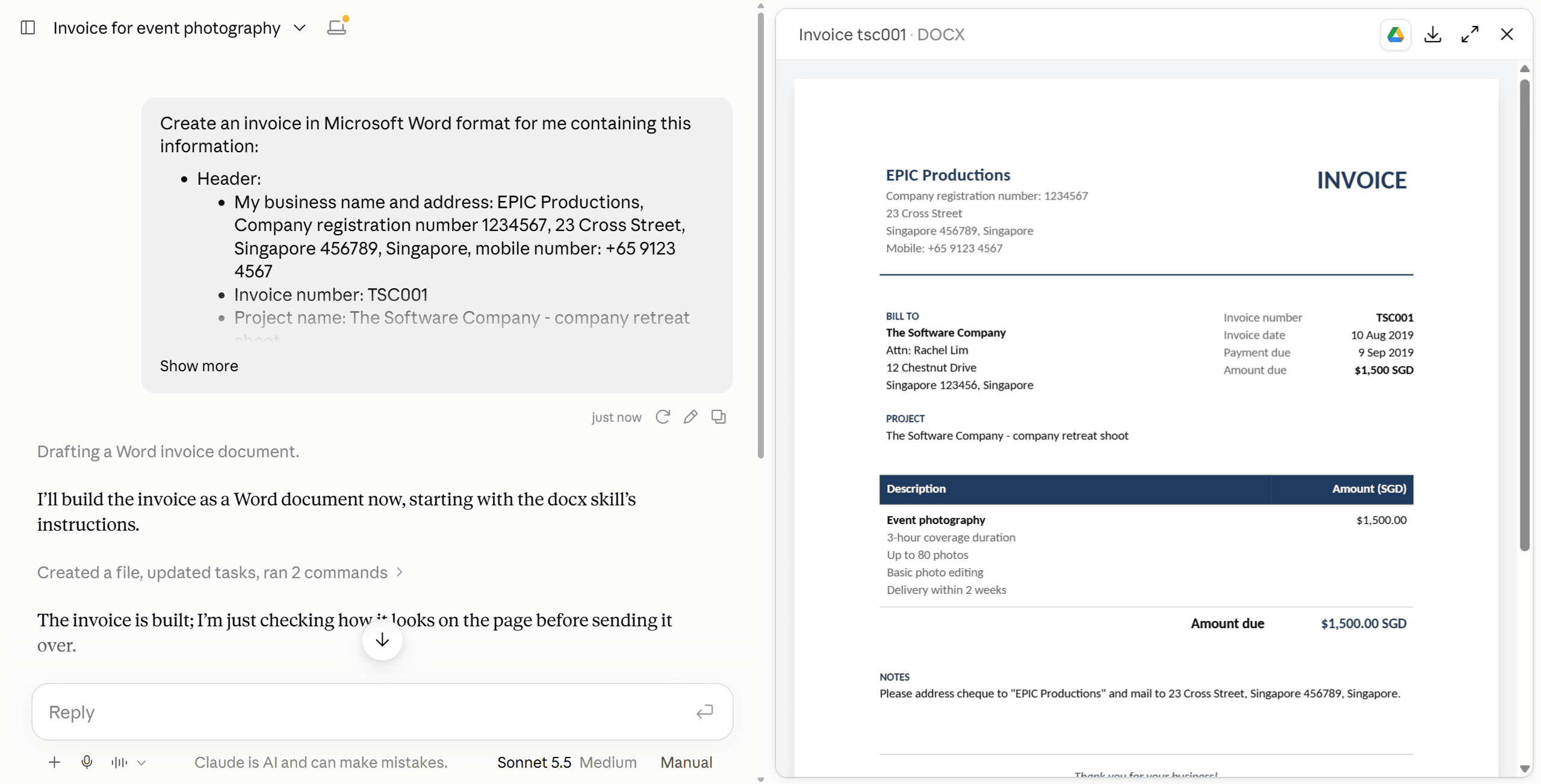
The invoice looks pretty good, doesn’t it?
I got Claude to generate the invoice in MS Word format so it’s easier to make more tweaks myself if I need to (compared to generating the invoice in PDF format, for example). Though I could also re-prompt Claude to make edits.
And that could be the tedious part – needing to type a prompt every time you want to generate an invoice. Instead of starting with an invoice template, you might find yourself starting with a prompt template for creating invoices.
Feel free to use the prompt I entered into Claude above. It’s not anything fancy:
Create an invoice in Microsoft Word format for me containing this information:
Header:
– My business name and address: EPIC Productions, Company registration number 1234567, 23 Cross Street, Singapore 456789, Singapore, mobile number: +65 9123 4567
– Invoice number: TSC001
– Project name: The Software Company – company retreat shoot
– Client’s business name, contact person and address: The Software Company, Rachel Lim, 12 Chestnut Drive, Singapore 123456, Singapore
– Amount due: $1,500 SGD
– Invoice date: 10 Aug 2019
– Payment due: 9 Sep 2019Body:
– Invoice items: Event photography, including 3-hour coverage duration, up to 80 photos, basic photo editing and delivery within 2 weeks
– Invoice notes: Please address cheque to “EPIC Productions” and mail to 23 Cross Street, Singapore 456789, Singapore.Footer:
– Miscellaneous notes: Thank you for your business!
3. The easiest way: invoicing software
This is my recommended option for creating invoices.
Recognising how painful creating invoices can be, different bunches of smart people have built software that automatically generates invoices for you.
No more manual alignment of text. Or trying to figure out where your invisible table borders are (because they’re, well, invisible). Heck, you don’t need even need to prompt ChatGPT.
Instead, your only job is to provide the info to be included, then hit “Download Invoice” (or an equivalent button) to download the generated invoice.
Time taken? Possibly less than 5 minutes.
So the next question is: what invoicing software should you use?
If you’re just starting out, maybe you want to be a cheapo and use free invoicing software. In that case, I support your decision 100% without any judgement.
For free invoicing software, I used to use And Co until I moved to Wave, because And Co’s free plan limited you to just 1 active client at any one time. On the other hand, Wave is completely free, with no similar limits.
It’s just that since then, And Co was acquired by Fiverr and rebranded to Fiverr Workspace before Fiverr shut it down. Wave is also no longer available in Singapore 🥲
If you’re looking for alternatives (that are also free), try Zoho Invoice. Harvest and BillerBear also have free plans.
On the other hand, maybe you have the budget for paid invoicing software. Here are a couple of options that are popular with freelancers and small businesses:
But regardless of whether you’re using free or paid invoicing software, chances are such software can do more than just generate invoices for you. They may also be able to help you:
- Send recurring invoices (good for billing clients for completing agreed scopes of work at regular intervals, such as retainer work)
- Keep tabs on your accounts
- Generate written contracts (because contracts don’t have to be in writing to be enforceable, but it’s still best practice to write them down)
- Send payment reminder emails to clients
My suggestion would be to research a few invoicing software options in greater detail and pick the one that meets your needs the best.
How to Send the Invoice (With Just a Few Clicks of a Button)
So you’ve created your invoice. Now, it’s time to actually send it so your client gets a copy (and can start paying you).
There are two options for doing so:
1. Sending it over via your invoicing software
Any good invoicing software should allow you to send your created invoices to clients from within the software itself.
This is what the option looks like in Xero:
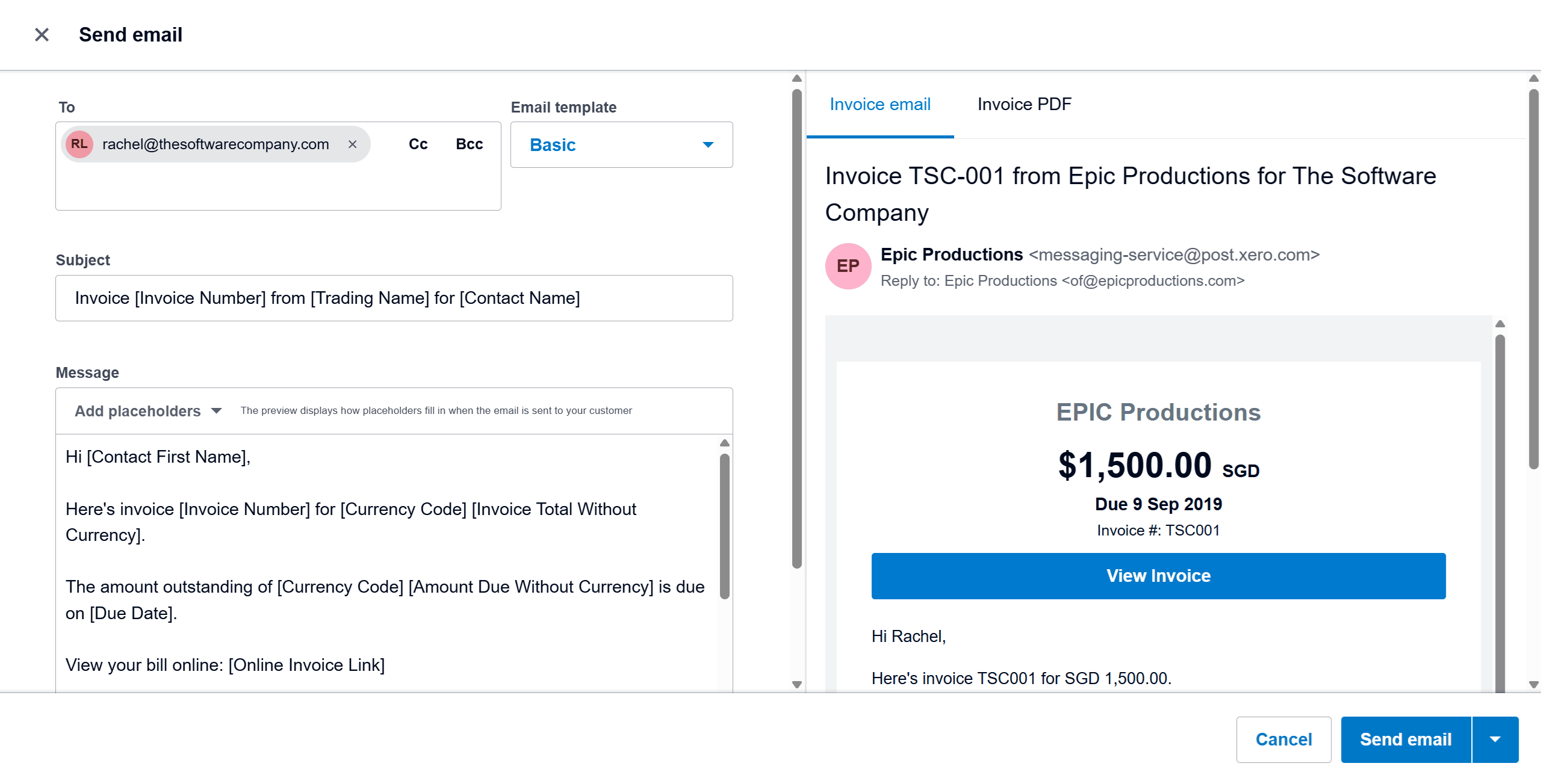
Just double-check the recipient’s email address, fill in a quick message to tell the client that you’re sending over your invoice (or edit the provided message template), then hit Send.
2. Sending it over via email
If you’ve created your invoices in MS Word, Google Docs, Canva or an AI tool, you can send them over via email.
Or if you don’t want to send software-generated invoices through that software for whatever reason (e.g. if you think it’s unprofessional to show clients you’re using third-party invoicing software), you can send your invoices via email as well.
Just save or download your invoice as a PDF, attach it to an email and send it off.

Now: Get Paid!
This can be the agonising part, because you just have to play the waiting game until your client pays your invoice.
And also, on time.
If it helps, you can send polite reminder emails 7 or 3 days before your invoice is due to remind your client to pay your invoice. If you’re using invoicing software, check if it comes with an automated reminder email feature – if so, you may want to try that out.
If your client has missed the payment deadline, then it’s definitely time for you to chase for payment. For more info, check out our guide to chasing freelance clients for payment via email.
Also: just because a client says they’ve paid you, you haven’t been paid unless you actually see the money in your bank account.
For example, I’ve had a client who said they’d mailed a cheque to me. But the cheque never arrived, so I had to ask them to pay me through another way (which they did).
Got your money? Send a receipt.
One last thing – after receiving payment, it’s good practice to send your client a receipt to confirm receipt of payment.
For invoices created through MS Word, Google Docs or Canva, you can hack your receipt together by changing the word “INVOICE” on your invoice to “RECEIPT” (plus any other necessary wording changes).
Created your invoice with an AI tool? Prompt it to create a receipt for you.
Invoicing software will usually have a built-in receipt generator feature.
Time to Start Invoicing
Knowing how to invoice a client is super important so you can get paid for your hard work. I hope this guide has given you a better understanding of the process, from start to finish.
Got any questions or tips on creating and sending invoices? Leave a comment.
Otherwise, you can kick-start your invoicing process by downloading my free invoice template below!